
Halo PSA Integration NEW!
The WithSecure™ Elements integration with Halo PSA automatically forwards security activity from Elements into Halo PSA as tickets. This lets MSPs manage WithSecure detections and notifications inside the same PSA tool they already use for service delivery, without manual ticket creation.
What this integration does
- Automated ticketing — WithSecure™ Elements creates tickets in Halo PSA when there is relevant activity for a mapped customer.
- Per-customer routing — Tickets are routed to the correct Halo PSA customer using the customer’s Halo PSA reference ID.
- Automated subscription provisioning — WithSecure™ products are synced to Halo PSA, and subscriptions are provisioned automatically from a customer’s recurring invoice.
- Deep links back to Elements — Each ticket includes basic information about the Elements Security Center activity, along with a deep link to the full details in WithSecure.
- Native and multi-tenant — The integration is built into Elements, supports multiple customer tenants, and is configured entirely from the Elements Security Center.
Before you begin
You will need:
- A Halo PSA account with permissions to create API applications.
- Access to the WithSecure™ Elements Security Center as a WithSecure Partner.
Step 1: Create API credentials in Halo PSA
- Log in to your Halo PSA account.
- Go to Configuration > Integrations from the navigation menu on the left-hand side.
- Select Halo PSA API, then under Applications click View applications.
- From the top-right corner, click +New and configure the application:
- Enter an application name, e.g.
WithSecure Elements. - Make sure the Active checkbox is selected.
- Under Authentication method, select Client ID and secret.
- Copy the Client ID and Client secret — you will need these in the Elements Security Center.
- Under Login type, select Agent.
- From the Agent to login in as dropdown, choose an agent. Tickets created by WithSecure use the identity of this agent.
- Click Save.
- Enter an application name, e.g.
Step 2: Configure the integration in Elements Security Center
In the WithSecure™ Elements Security Center, go to the Management > Integrations section and locate the Halo PSA integration.
Click Configure and complete the configuration.
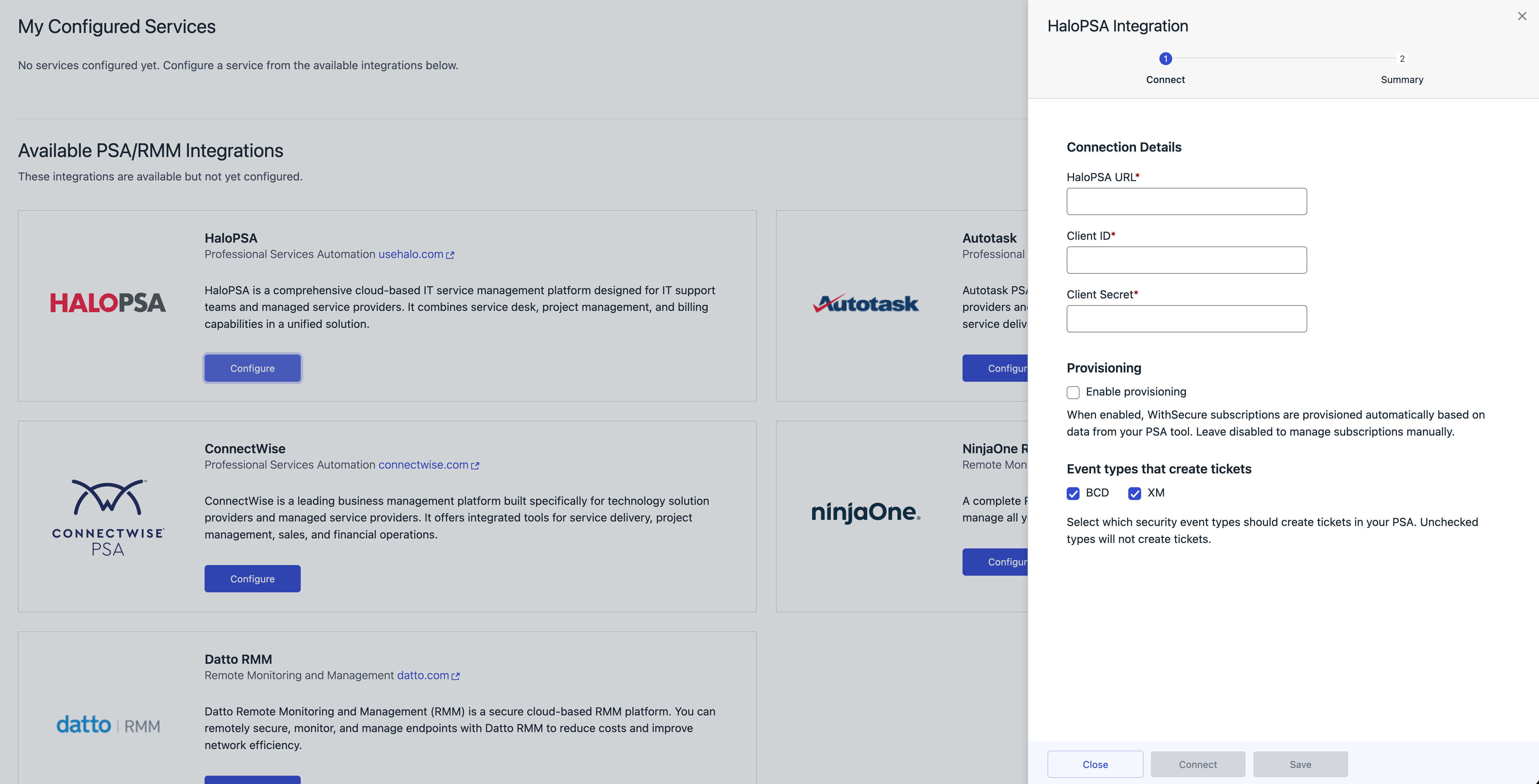
- Set the HaloPSA URL of your Halo PSA tenant (e.g.
https://yourcompanytenant.halopsa.com). - Enter the Client ID and Client Secret copied from Halo PSA.
- Click Connect to validate connectivity.
- Click Save.
Note: To enable automated WithSecure subscription provisioning, turn on Provisioning in the integration configuration and click Save. See Automated WithSecure subscription provisioning for how to use it.
Step 3: Enable ticketing for a customer
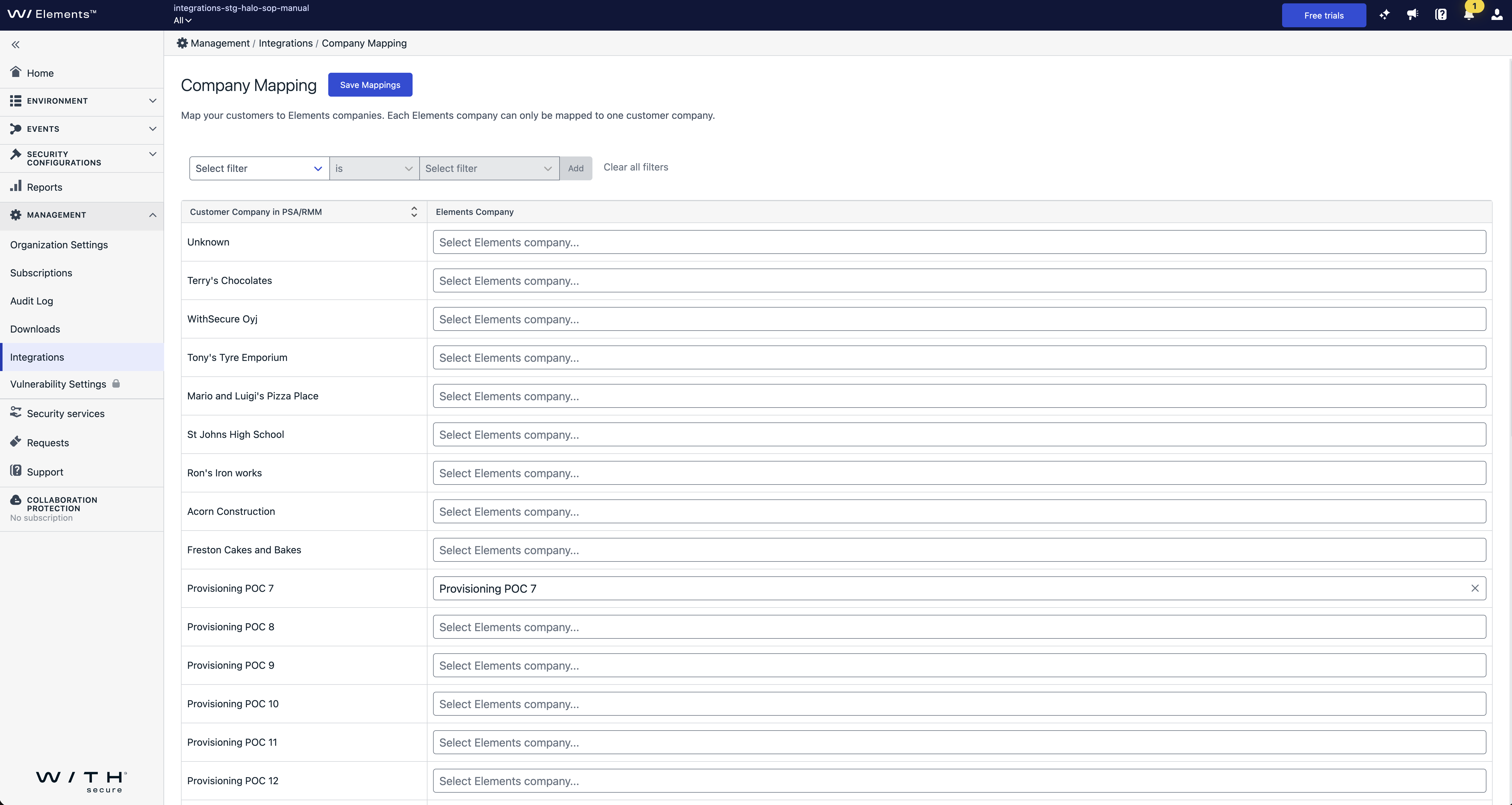
Map your Halo PSA companies to the corresponding WithSecure™ Elements companies. Ticket creation starts automatically for each mapped company.
- In the company mapping view, match each Halo PSA company to its WithSecure™ Elements company.
- Click Save Mappings.
Monitor tickets
Monitor the tickets you configured the integration to create in Halo PSA. Each ticket contains basic information about the Elements Security Center activity and a deep link to the full details in WithSecure.
Automated WithSecure subscription provisioning
When Provisioning is enabled in the integration configuration, the integration provisions WithSecure™ subscriptions for your customers directly from recurring invoices in Halo PSA. You no longer need to create subscriptions manually in the WithSecure partner portal.
How it works
Once Provisioning is enabled in the integration configuration, the integration automatically syncs the available WithSecure™ products to the Halo PSA tenant of the partner. These products become available in Halo PSA so you can add them to a customer’s recurring invoice. When a recurring invoice that includes a WithSecure™ product is enabled for a customer, the integration provisions the corresponding subscription for that customer automatically.
Note: If the customer’s organization does not yet exist under your partner account in WithSecure, the integration creates it automatically as part of provisioning.
Prerequisites: required customer details
Before a subscription can be provisioned automatically, the customer record in Halo PSA must have the following fields defined:
- Address
- Accounts first name
- Accounts last name
- Accounts email address
These billing details fields are mandatory. They are sent to WithSecure as the account’s contact information, so provisioning fails until they are filled in for the customer.
Provision a subscription with a recurring invoice
To provision a WithSecure™ subscription for a customer, add a recurring invoice in Halo PSA:
In Halo PSA, go to Recurring Invoices and click New, then New Recurring Invoice.
Click Add Recurring Item and select the WithSecure™ product(s) you want to provision.
Set the quantity to 1 or more. The quantity sets the maximum number of seats available for the WithSecure™ subscription. You can change it later from the subscription if needed.
Note: You can set the price to whatever you want. This is the price the MSP bills their customer and has no effect on the WithSecure™ subscription itself.
Click Select.
From the panel on the right-hand side, click Set Schedule and set the Start date to today or to a later date.
Click Save to save the schedule.
Click Save again to save the recurring invoice.
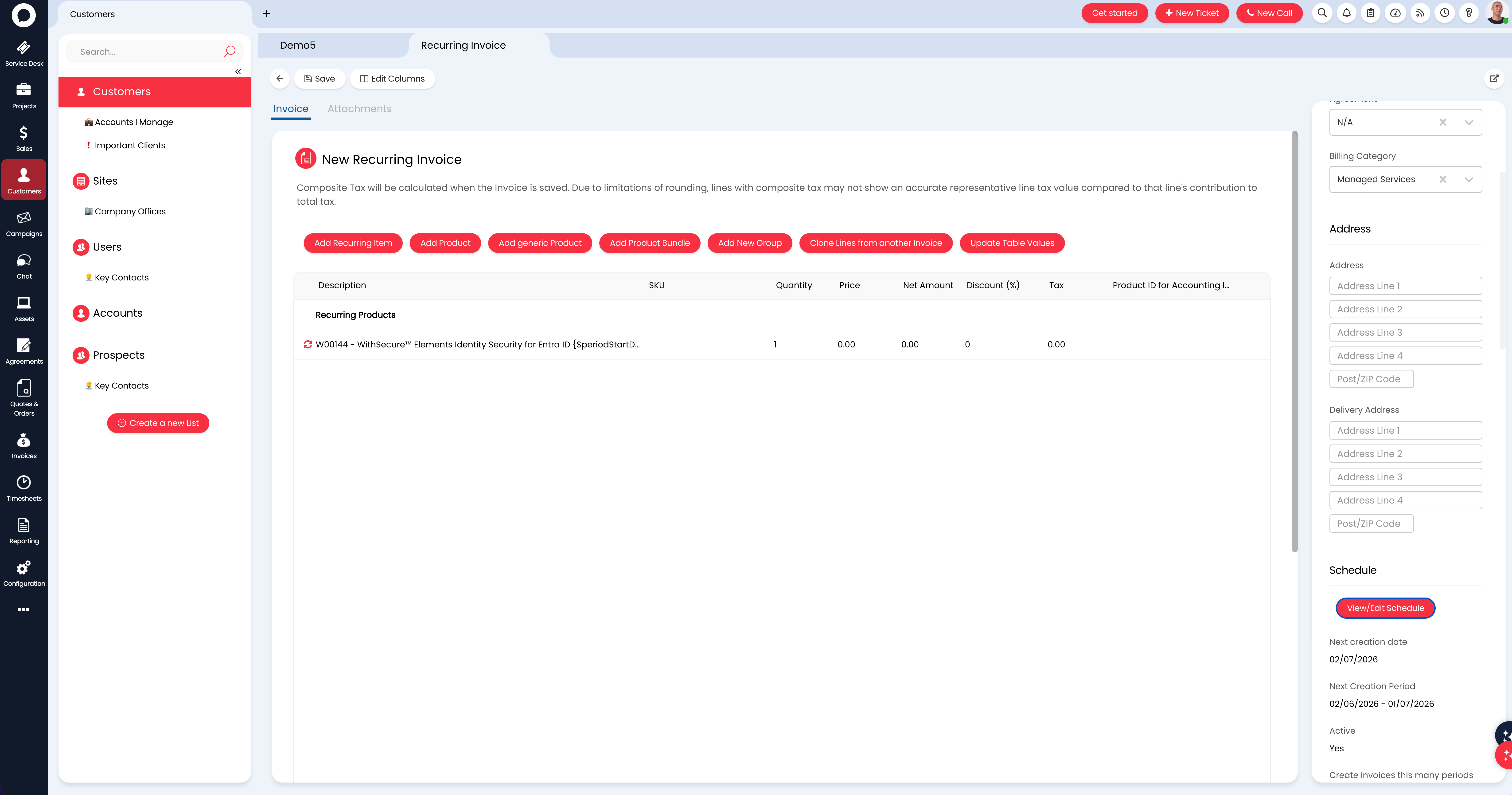
If the customer’s billing details are correctly set, Elements will automatically provision the new customer/subscription within 15 minutes. To change the number of seats later, update the quantity on the recurring invoice.
Tip: To provision the subscription immediately instead of waiting, go to Management > Integrations in the Elements Security Center, open the active Halo PSA integration, and click Sync sites.
Troubleshooting
If tickets are not created as expected, review the integration logs in the Elements Security Center:
- Go to the Management > Integrations section.
- Open the active Halo PSA integration.
- Select Logs to review recent integration activity and error details.
If a subscription is not provisioned after enabling a recurring invoice, review the integration logs to check for any missing customer details required for provisioning. After completing the missing details for the customer in Halo PSA, you can manually trigger provisioning by going to Management > Integrations in the Elements Security Center, opening the active Halo PSA integration, and clicking Sync sites. Then, review the integration logs again—please note that processing may take up to 1 minute.
Availability
This integration is available to WithSecure Partners in the Elements Security Center. It is not available for free trials or company-managed subscriptions. To access dedicated partner features, contact WithSecure.