
ConnectWise PSA Integration NEW!
The WithSecure™ Elements integration with ConnectWise PSA automatically forwards security activity from Elements into ConnectWise PSA as tickets. This lets MSPs manage WithSecure detections and notifications inside the same PSA tool they already use for service delivery, without manual ticket creation.
What this integration does
- Automated ticketing — WithSecure™ Elements creates tickets in ConnectWise PSA when there is relevant activity for a mapped customer.
- Per-customer routing — Tickets are routed to the correct ConnectWise PSA customer using the customer’s ConnectWise PSA reference ID.
- Deep links back to Elements — Each ticket includes basic information about the Elements Security Center activity, along with a deep link to the full details in WithSecure.
- Native and multi-tenant — The integration is built into Elements, supports multiple customer tenants, and is configured entirely from the Elements Security Center.
Before you begin
You will need:
- A ConnectWise PSA account with permissions to create API keys.
- Access to the WithSecure™ Elements Security Center as a WithSecure Partner.
Step 1: Create API keys in ConnectWise PSA
- Select My account from the user dropdown in the top-left corner.
- Select the API keys tab.
- Click the + icon to add a new API key:
- Set the description, e.g.
WithSecure Elements. - Click the Save icon to generate the public and private keys.
- Set the description, e.g.
- Copy the public and private keys for use in the Elements Security Center.
To configure the integration you will need:
- Company ID — the same ID used to log in to the ConnectWise PSA management console.
- Public Key
- Private Key
Step 2: Configure the integration in Elements Security Center
In the WithSecure™ Elements Security Center, go to the Management > Integrations section and locate the ConnectWise PSA integration.
Click Configure integration on the ConnectWise PSA component and complete the configuration.
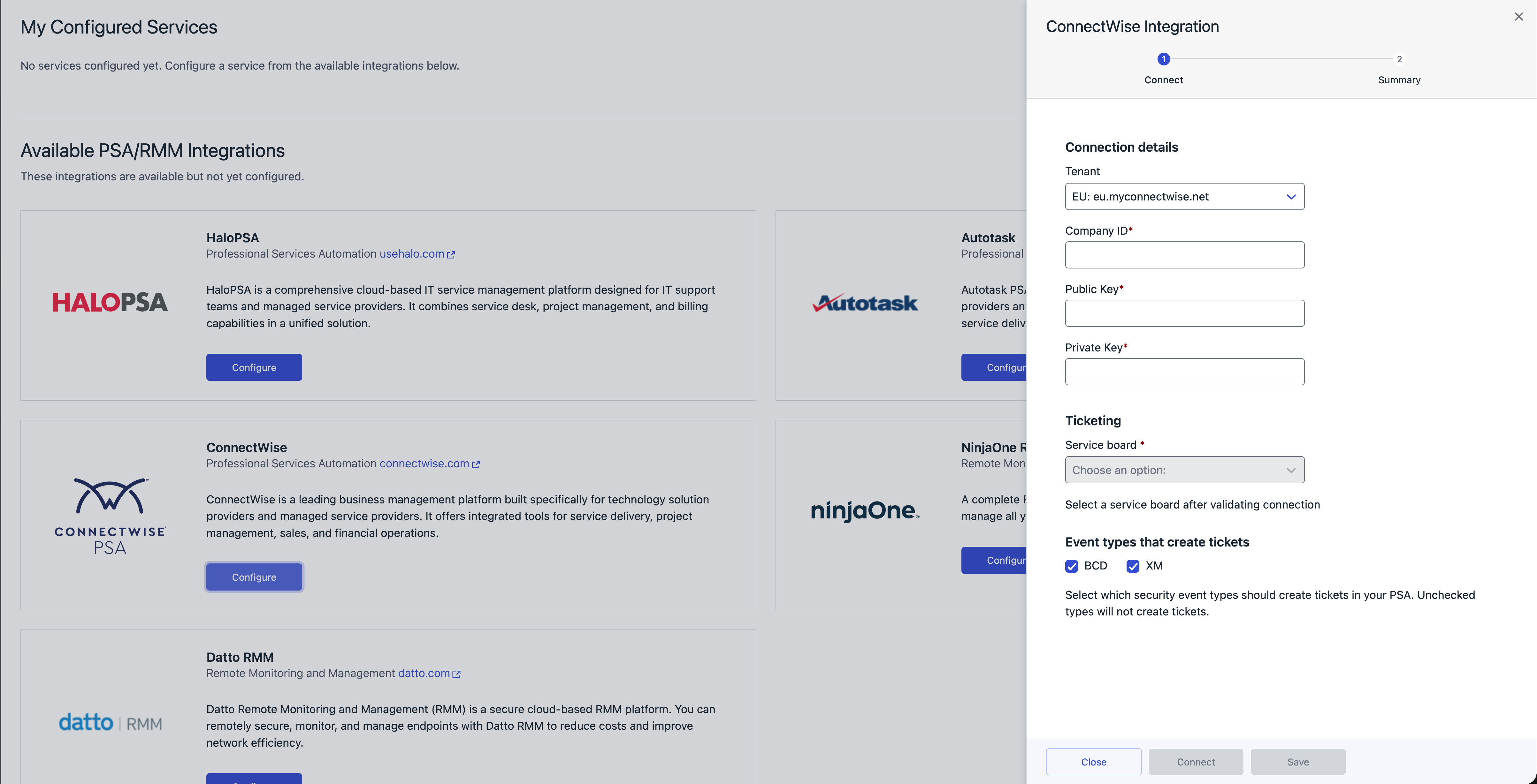
- Select your tenant from the dropdown list (the same as your ConnectWise PSA management console URL).
- Set the Company ID (the same as your ConnectWise PSA management console Company ID).
- Enter the public and private keys copied from ConnectWise PSA.
- Click Connect to validate connectivity.
- Select the desired Service board where the tickets will be routed.
- Click Save.
Step 3: Enable ticketing for a customer
Map your ConnectWise PSA companies to the corresponding WithSecure™ Elements companies. Ticket creation starts automatically for each mapped company.
- In the company mapping view, match each ConnectWise PSA company to its WithSecure™ Elements company.
- Click Save Mappings.
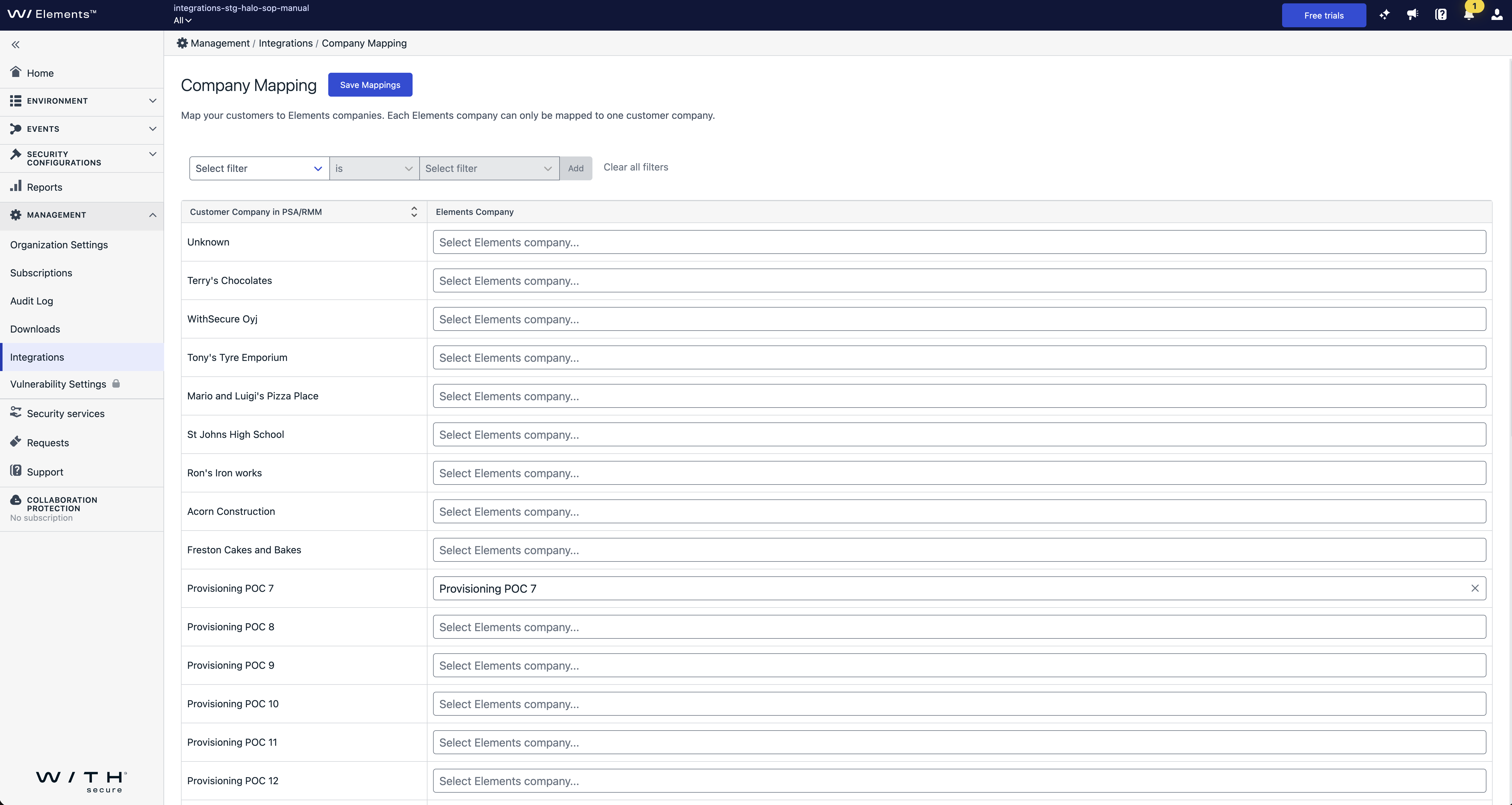
Monitor tickets
Monitor the tickets you configured the integration to create in ConnectWise PSA. Each ticket contains basic information about the Elements Security Center activity and a deep link to the full details in WithSecure.
Troubleshooting
If tickets are not created as expected, review the integration logs in the Elements Security Center:
- Go to the Management > Integrations section.
- Open the active ConnectWise PSA integration.
- Select Logs to review recent integration activity and error details.
Availability
This integration is available to WithSecure Partners in the Elements Security Center. It is not available for free trials or company-managed subscriptions. To access dedicated partner features, contact WithSecure.